> For the complete documentation index, see [llms.txt](https://manual-egcliniccare.eghealthcare.dk/llms.txt). Markdown versions of documentation pages are available by appending `.md` to page URLs; this page is available as [Markdown](https://manual-egcliniccare.eghealthcare.dk/moduler-og-funktioner/kalender/opret-ny-aftale.md).

# Opret ny aftale

Når du har valgt den behandler i kalenderen, som skal behandle klienten, klikker du (enkeltklik) på den ønskede tid. Du skal nu søge klienten frem. Indtast klientens fødselsdato eller fornavn, og tryk derefter på ENTER, hvorefter nedenstående billede vises.&#x20;

<figure><img src="https://2994366934-files.gitbook.io/~/files/v0/b/gitbook-x-prod.appspot.com/o/spaces%2FIZtuBY0niqDNgWc6UCP5%2Fuploads%2FHLk2tkXas5xGppqnILJg%2Fopretny%20aftale.png?alt=media&amp;token=bad36f49-6c4a-44ed-8e21-6baf0f59c772" alt=""><figcaption></figcaption></figure>

ClinicCare vil nu hente den første klient frem i 'Aftale-detailbilledet' (se ovenfor), som matcher dit søgekriterium. Hvis der er flere klienter, der matcher, kan du vælge en anden i dropdown-listen øverst til venstre. Det gør du ved at klikke på pilen, der peger nedad.&#x20;

Hvis du derimod ved, at klienten ikke allerede findes i systemet, skal du klikke på **\<Opret ny patient>.**

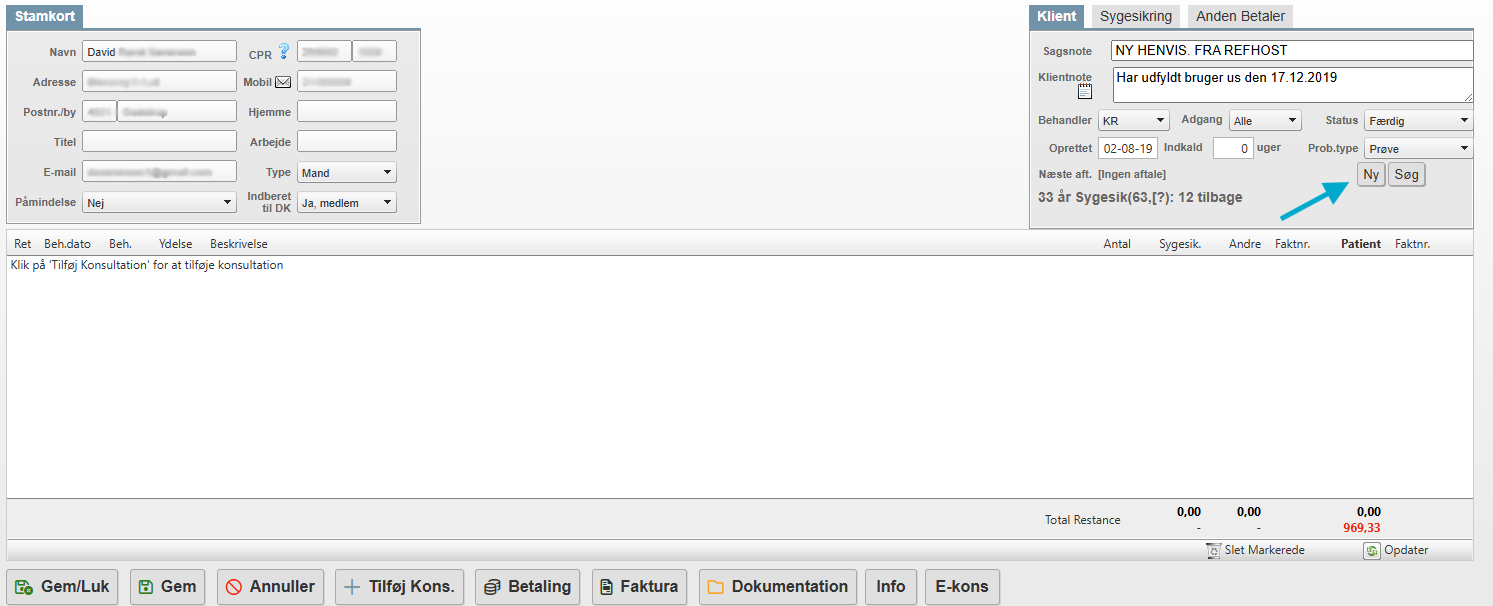
Man kan også, når man står på en bestemt klient, klikke på knappen **\<Ny>** i 'Klient-fanebladet'

<figure><img src="https://2994366934-files.gitbook.io/~/files/v0/b/gitbook-x-prod.appspot.com/o/spaces%2FIZtuBY0niqDNgWc6UCP5%2Fuploads%2FWkOfYW18RRzDVyZGGCRv%2FNy%20klient%20i%20klient%20fanebladet.png?alt=media&amp;token=8c30c89e-a955-4bd5-ab7d-ad8e6bddb3ed" alt=""><figcaption></figcaption></figure>

Herefter åbnes kalenderen, og man kan booke en tid på samme måde som beskrevet ovenfor.&#x20;

### Aftale-detailbilledet

<figure><img src="https://2994366934-files.gitbook.io/~/files/v0/b/gitbook-x-prod.appspot.com/o/spaces%2FIZtuBY0niqDNgWc6UCP5%2Fuploads%2FHLk2tkXas5xGppqnILJg%2Fopretny%20aftale.png?alt=media&amp;token=bad36f49-6c4a-44ed-8e21-6baf0f59c772" alt=""><figcaption></figcaption></figure>

Øverst vises oplysninger fra stamkortet. Hvis der er nogle oplysninger på klienten, som skal ændres, kan dette gøres i ovenstående.

**Påmindelse:** Hvis du anvender ClinicCare til at sende påmindelser (sms eller email), kan klienten få tilsendt en påmindelse 24 timer før aftalen. Dette sker, hvis du vælger **'SMS 24t**' på klienten. Herefter vises et blokafsnit med oplysninger om den pågældende aftale.&#x20;

**Kons.Type:** Vælg konsultationstype - dette afgør både farve og varighed på aftalen.&#x20;

Når du har rettet oplsyningerne, kan du klikke på **\<Gem aftale>**. Hvis du samtidig ønsker at udskrive klientens tider til en bon-printer, kan du klikke på **\<Udskriv>**-knappen, som ses til højre i billedet.&#x20;

**Er du i tvivl om, hvordan du opretter en ny kalenderaftale til en klient?**\
Se vejledningsvideoen nedenfor for en trinvis gennemgang.

{% embed url="<https://www.youtube.com/watch?v=TZVoMzQy6bE>" %}


---

# Agent Instructions
This documentation is published with GitBook. GitBook is the documentation platform designed so that both humans and AI agents can read, navigate, and reason over technical content effectively. Learn more at gitbook.com.

## Querying This Documentation
If you need additional information that is not directly available in this page, you can query the documentation by asking a question.

Perform an HTTP GET request on the following URL with the `ask` and `goal` query parameters:

```
GET https://manual-egcliniccare.eghealthcare.dk/moduler-og-funktioner/kalender/opret-ny-aftale.md?ask=<question>&goal=<user_goal>
```

`ask` is the immediate question: it should be specific, self-contained, and written in natural language.
`goal` is what the user is ultimately trying to achieve, the reason they need the answer. Sharing it helps GitBook give you a better, more relevant answer. A goal is most helpful when it describes the outcome the user wants rather than restating the question. For example, with `ask=how do I create an API token`, a goal like `automate deployments from our CI pipeline` lets GitBook tailor the answer to that use case.

The response will contain a direct answer to the question and relevant excerpts and sources from the documentation.

Use this mechanism when the answer is not explicitly present in the current page, you need clarification or additional context, or you want to retrieve related documentation sections.